Momscode-Aliph Carbon Print Format and Customization
Configured Print Format for
Commercial Invoice
Packing List
Tax Invoice
Proforma Invoice
Export Proforma Invoice
Kera Coal Karnataka-bill of Supply
Kera Coal Melmuri-Bill of Supply
Delivery Challan
Purchase Order
Charcoal Receipt Print Format
General Points :
- Configured the print formats for Purchase Order, Sales Invoice (Tax Invoice, Packing List, Commercial Tax Invoice), Proforma Invoice (Export Proforma Invoice and Proforma Invoice), Delivery Challan-Delivery Note, and Charcoal Receipt.
- The Print button is used to generate the print format.
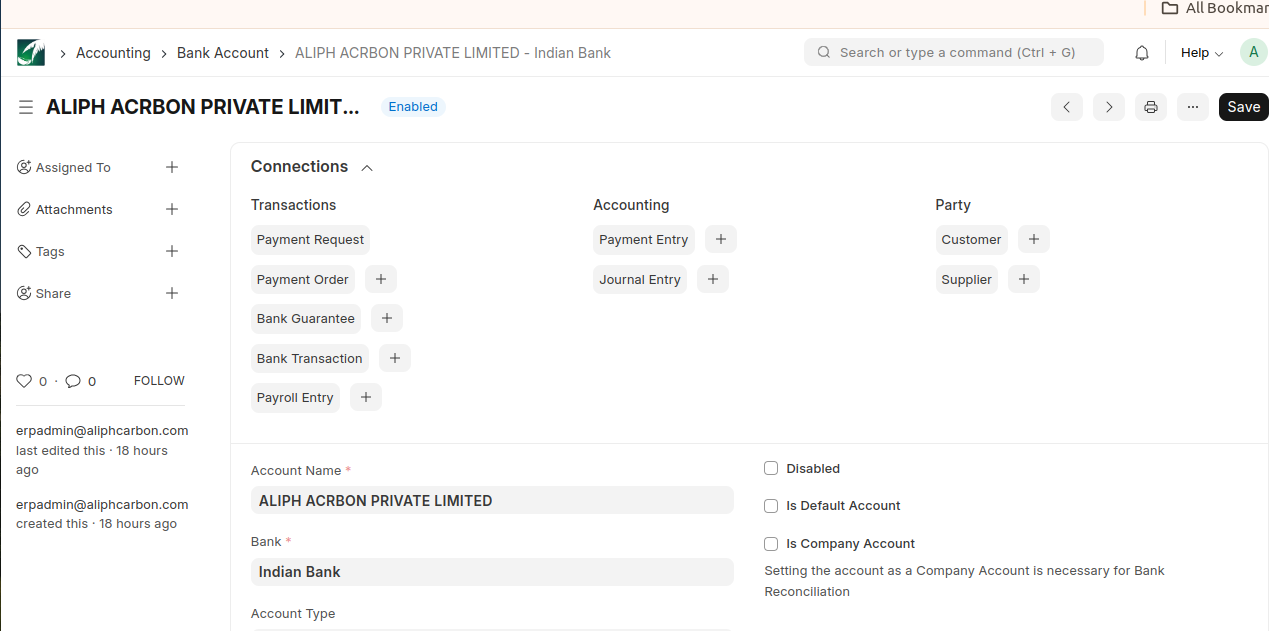
- Bank details are configured in the Bank Account doctype.
- If the values are available, only then the label and corresponding field will be visible in the print.
Sales Invoice (Tax Invoice) :
- Select the Doctype.
- Enter the information in the fields.
- The visibility of taxes is based on the Tax Category selected in the document or the Tax Category defined for the customer.
- The fields Packing Details, Quality per Pack, and Declaration are taken from the Invoice Info tab in the Sales Invoice.
- Select the Bank Account field in the Invoice Info tab; the value is fetched from the Bank Account doctype.

Sales Invoice (Commercial Invoice) :
- Select the Doctype.
- Enter the information in the fields.
- The fields LUT Reference Number, In Ref Registration Number, Terms of Shipment, Price Basis, and Packing Method are taken from the Invoice Info tab of the Sales Invoice.

Sales Invoice (Packing List) :
- Select the Doctype.
- Enter the information in the fields.
- The fields Mode of Pre-Carriage,Pick-up Location,Country of Origin,Country of Final Destination,Port of Loading,Port of Discharge,Contract Number are taken from the Invoice Info tab of the Sales Invoice.

- The fields Shipping Marks, No. of Bags and Pallets, Total Weight in Kgs, and Total Gross Weight in Kgs are taken from the Item Table of the Sales Invoice.

- Save the document and take the print.
Purchase Order :
- Select the Doctype.
- Enter the information in the fields.
- The fields Vendor Reference taken from the Details tab of the Purchase Order.

- Save the document.
Delivery Challan :
- select the doctype delivery note.
- The fields Challan Type, Reference Number, Date, and Place are selected from the Delivery Challan Type tab of the Delivery Note.

Proforma Invoice :
- Select the doctype Proforma Invoice.
- Enter the information in the fields.
- Save the document.